How to download ThisVid videos on Windows and Mac
A desktop browser gives you two things a phone does not: control over where the file lands, and a download manager that can pick up an interrupted transfer where it stopped.
- Copy the address of the video page. Open the video on thisvid.com and copy the address bar, or right-click the video's link in a listing and copy that. Anything containing
/videos/works, and an/embed/address works too. - Paste it into the field and press Get video. The board posts one row per quality the video was published in, each with its real size in bytes read from the source.
- Choose where it goes. A left-click on Download saves to your browser's usual download folder. A right-click, then Save link as, lets you pick the folder and the filename before anything starts — worth doing for a large file you want somewhere specific.
- Let it finish, then check the size. The number in the row is the exact byte count of the file you should end up with. Comparing it to the file on disk is the fastest way to know a download is complete.
Setting the download folder once
In Chrome and Edge, the setting is under Settings, then Downloads. Turning on "Ask where to save each file" is the useful one if you sort as you go rather than clearing a folder later.
In Firefox, it is under Settings, then General, then Files and Applications. In Safari on a Mac, it is Safari, then Settings, then General, then File download location.
On a Mac, a file that arrives with a quarantine flag from Safari is normal for anything downloaded from the web; opening it in a video player is unaffected.
Resuming instead of restarting
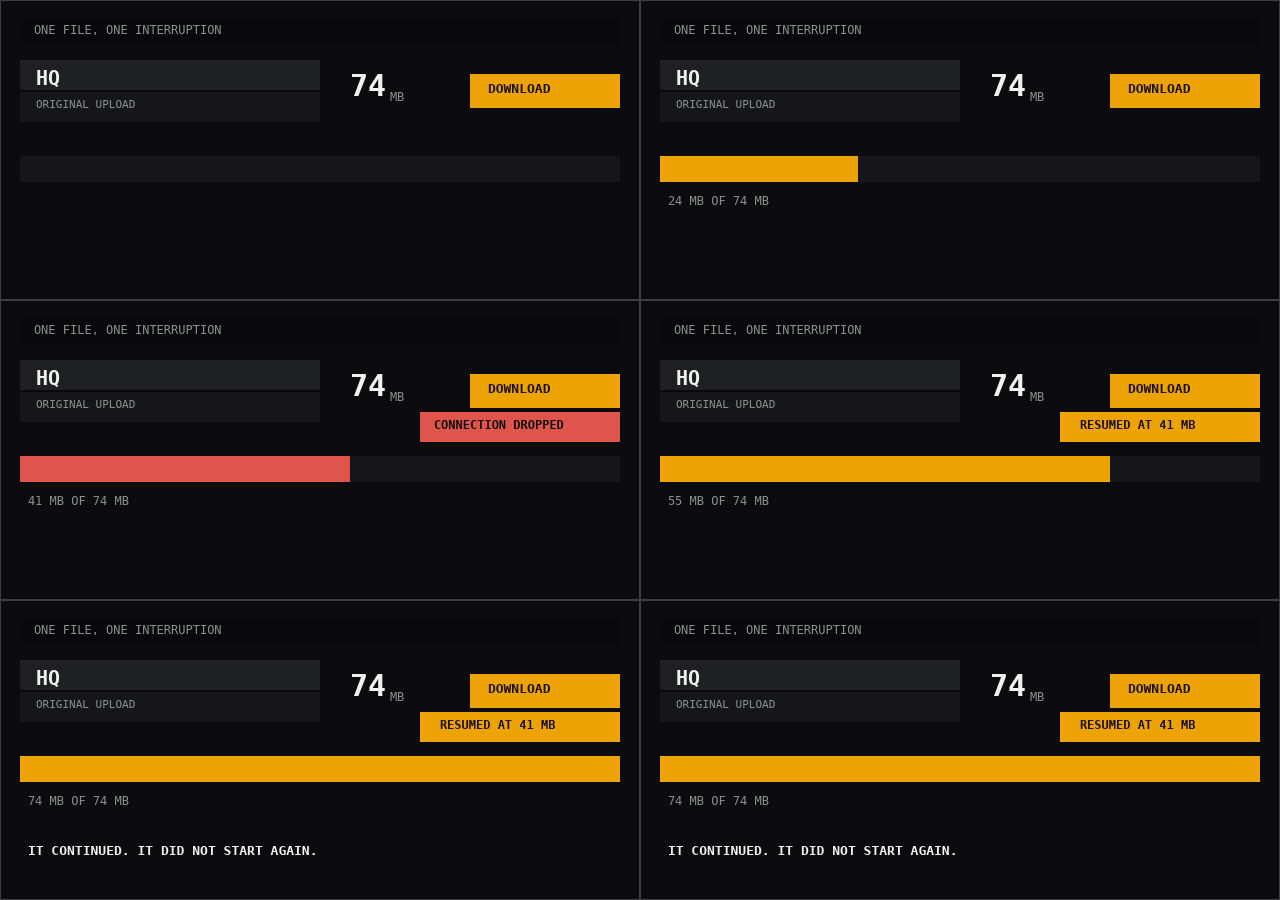
This is the practical advantage of a desktop browser here. Downloads support range requests, so an interrupted transfer can continue from the byte it reached.
In Chrome and Edge, the failed item in the downloads list gets a Resume control. In Firefox, the same. Both work as long as the link is still valid — which brings up the one thing to plan around.
Download links stop working about an hour after the video is read. If a transfer dies and you come back to it the next morning, Resume will fail, and the fix is not to fight the browser: paste the video address again, take the fresh link, and start it then. For a very large file on a poor connection, reading the page immediately before starting the download is the safest habit.
Checking that the file is actually complete
This is worth a paragraph because most download tools make it impossible. The size shown in the row is the exact byte count reported by the source, and it is signed into the download link, so it is not something the page can be talked into overstating.
On Windows, right-click the file, choose Properties, and read Size in bytes — not "size on disk", which is a different number about how the drive stores it. On macOS, select the file and press Command-I, or run ls -l in Terminal. If the two numbers match, the file is whole.
A file that is much smaller than the number in the row is a failed download, not a compressed one. Nothing here re-encodes anything, so there is no legitimate reason for a 77 MB video to arrive as a few kilobytes.
Why the file passes through a server
ThisVid serves its video files only to requests that come from its own pages. A request sent from anywhere else is not refused with an error — it is answered with a placeholder file of about 19 KB, with a normal status code and the right content type.
That is worse than a refusal, because a placeholder looks exactly like a successful download until you open it. It is also why this cannot be done by your browser alone, and why a browser extension promising to do it locally is making a claim worth being sceptical about.
So the file passes through this server, which asks for it correctly and streams it straight to you. Nothing is stored here, and nothing is re-encoded, resized or watermarked. A guard on that server also refuses to hand you a body far shorter than the size it measured, so a placeholder cannot reach you dressed as a finished video.
Disk space, before rather than after
The reason every row leads with its weight is that the decision is usually about space or time rather than quality. Four videos at 200 MB each is most of a gigabyte, and a drive that is nearly full will fail a large download late rather than early.
If you are collecting more than a couple of files, add the numbers up before you start rather than discovering the total afterwards.
Common questions
Do I need an extension or a desktop app?
No. Everything happens in a normal browser tab. An extension would need permission to read pages you visit, which is a large ask for something a page already does.
Which browser works best?
Any current one. Chrome, Edge and Firefox all resume interrupted downloads cleanly; Safari on a Mac works but is the least forgiving about long transfers.
Why did my resume fail?
Almost always because the link expired — they last about an hour. Read the video page again and take the fresh link.
Can I download several at once?
One video at a time, deliberately. There is a limit on concurrent transfers per visitor so that one person cannot make the service unusable for everyone else.
Paste a ThisVid link and see the weights for yourself.
Open the downloader